3D Sensors
14 sensors available for 3D workflows.
How sensors fit into a chain
Sensors detect input, state , collisions, timing, and other conditions. They begin a chain but do not perform gameplay actions by themselves.
- Choose the event or condition to detect.
- Configure filters, thresholds, or stored values.
- Connect the sensor to a Controller , then to one or more Actuators.
Actuator
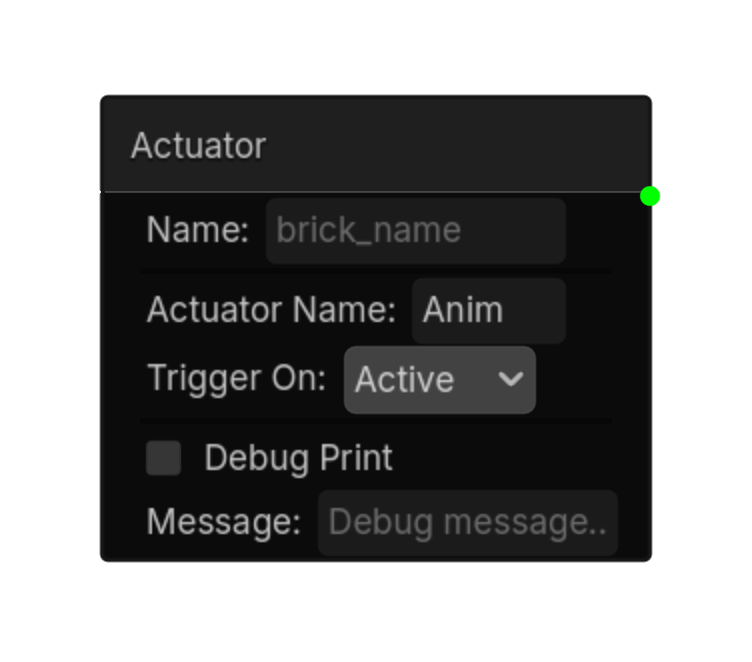
Fires TRUE when the named actuator on this node matches the chosen state.\nThe actuator must have an instance name set.
Options
| Property | Details |
|---|---|
actuator_name
|
Actuator Name |
trigger_on
|
Trigger On
Choices: Active,Inactive Default:
active
|
Using this brick
Typical uses
- Start a logic chain when fires TRUE when the named actuator on this node matches the chosen state.\nThe actuator must have an instance name set.
- Gate an action through a Controller so multiple conditions can be combined.
- Use it as the event or condition at the beginning of a reusable chain.
Example chain
Animation Tree
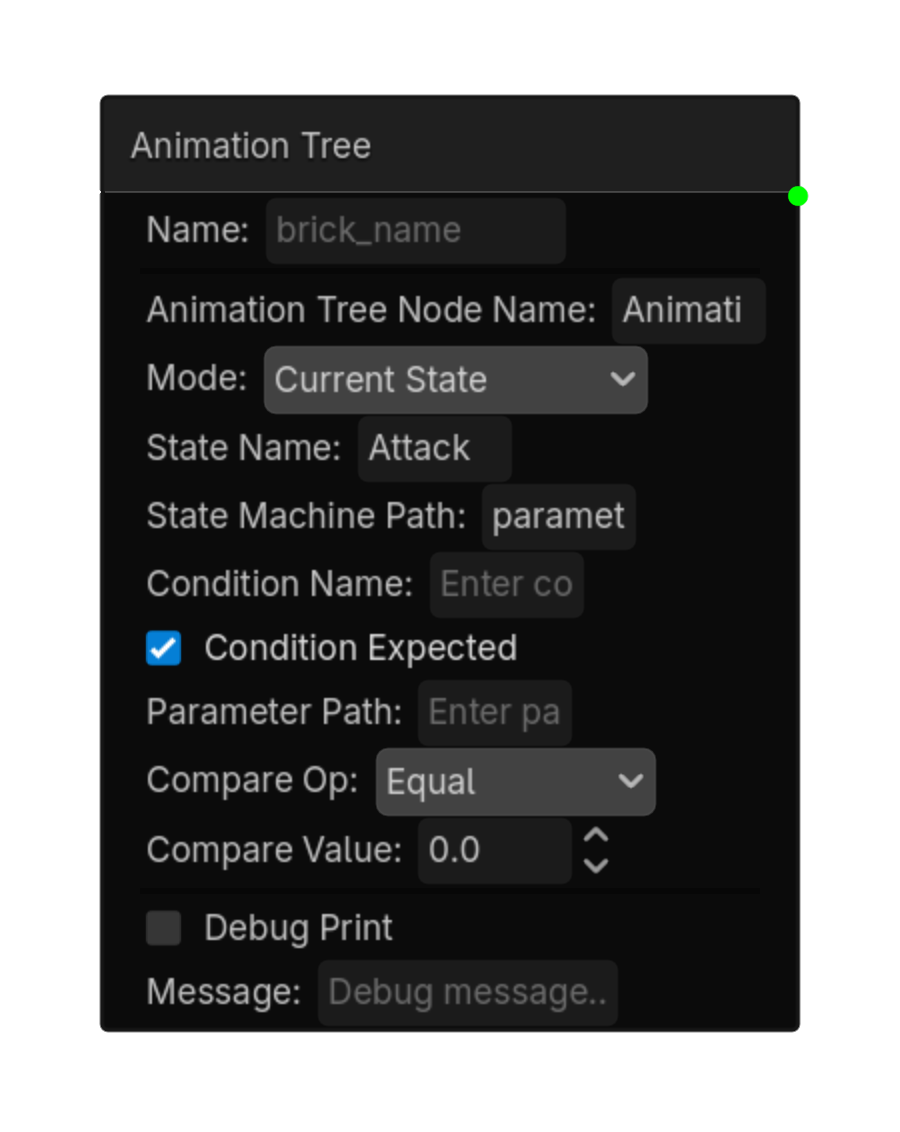
The AnimationTree is found by typed node name Modes: Current State: True when the state machine is in a specific state Condition: True when a boolean condition matches Parameter Compare: True when a parameter meets a comparison condition
Options
| Property | Details |
|---|---|
animation_tree_node_name
|
Animation Tree Node Name
Default:
AnimationTree
AnimationTree node name |
mode
|
Mode
Choices: Current State,Condition,Parameter Compare Default:
current_state
|
state_name
|
State Name |
state_machine_path
|
State Machine Path
Default:
parameters/playback
|
condition_name
|
Condition Name |
condition_expected
|
Condition Expected
Default:
true
|
parameter_path
|
Parameter Path |
compare_op
|
Compare Op
Choices: Equal,Not Equal,Greater,Less,Greater Equal,Less Equal Default:
equal
|
compare_value
|
Compare Value
Default:
0.0
|
Using this brick
Typical uses
- Start a logic chain when the AnimationTree is found by typed node name Modes: Current State: True when the state machine is in a specific state Condition: True when a boolean condition matches Parameter Compare: True when a parameter meets a comparison condition.
- Gate an action through a Controller so multiple conditions can be combined.
- Use it as the event or condition at the beginning of a reusable chain.
Example chain
Collision
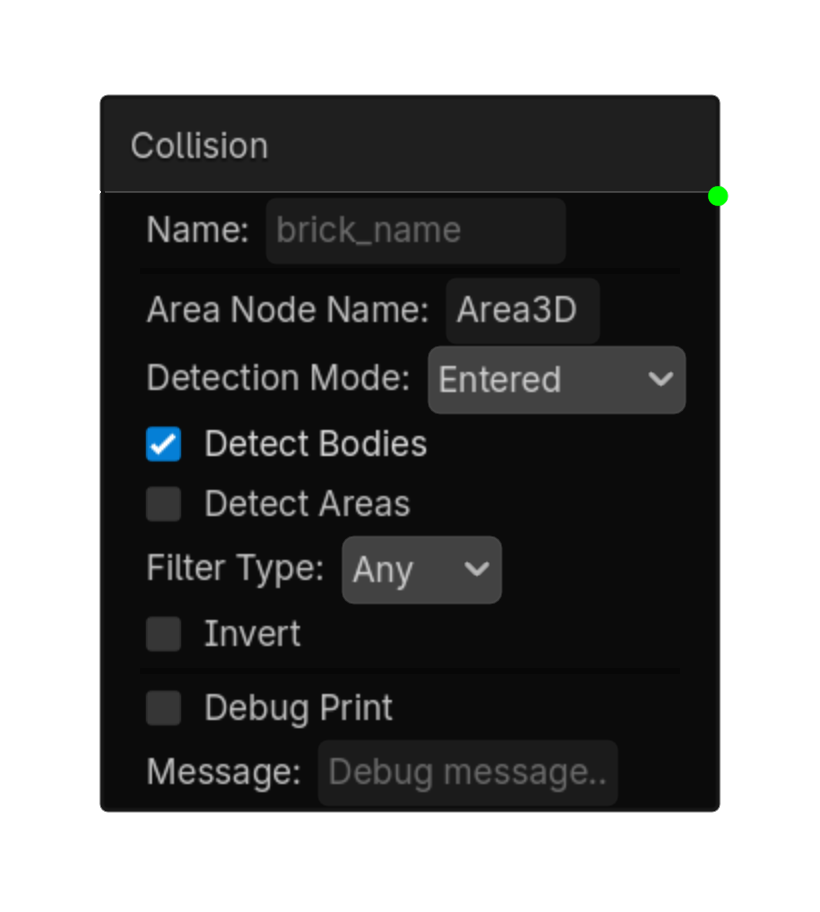
Detects collisions via an Area3D node located by name.\n\nType the node name (not the full path) into 'Area Node Name'.
Options
| Property | Details |
|---|---|
area_node_name
|
Area Node Name |
detection_mode
|
Detection Mode
Choices: Entered,Exited,Overlapping Default:
entered
|
detect_bodies
|
Detect Bodies
Default:
true
|
detect_areas
|
Detect Areas
Default:
false
|
filter_type
|
Filter Type
Choices: Any,Group,Name Default:
any
|
filter_value
|
Filter Value |
invert
|
Invert
Default:
false
|
Using this brick
Typical uses
- Start a logic chain when detects collisions via an Area3D node located by name.\n\nType the node name (not the full path) into 'Area Node Name'.
- Gate an action through a Controller so multiple conditions can be combined.
- Use it as the event or condition at the beginning of a reusable chain.
Example chain
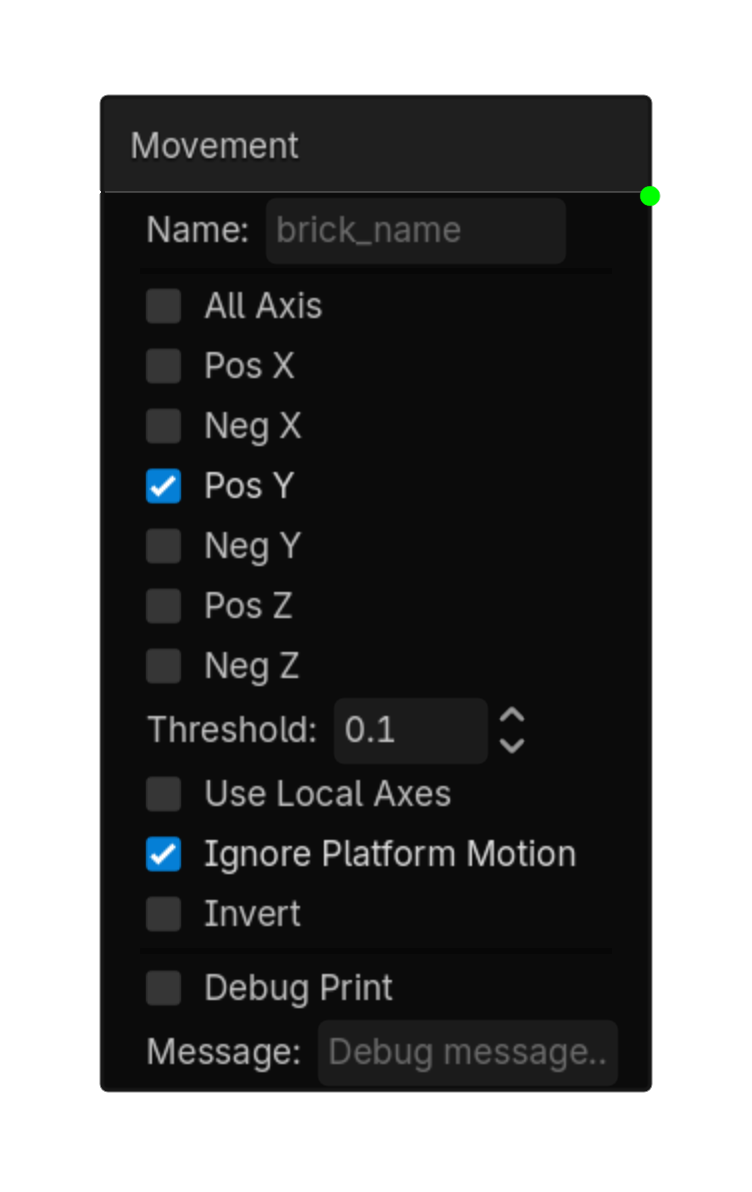
Movement
Detects if the node is moving in specific directions.\nCheck which directions to monitor.\nActive when any checked direction moves past the threshold.
Options
| Property | Details |
|---|---|
all_axis
|
All Axis
Default:
false
|
pos_x
|
Pos X
Default:
false
|
neg_x
|
Neg X
Default:
false
|
pos_y
|
Pos Y
Default:
false
|
neg_y
|
Neg Y
Default:
false
|
pos_z
|
Pos Z
Default:
false
|
neg_z
|
Neg Z
Default:
false
|
threshold
|
Threshold
Default:
0.1
|
use_local_axes
|
Use Local Axes
Default:
false
|
ignore_platform_motion
|
Ignore Platform Motion
Default:
true
|
invert
|
Invert
Default:
false
|
Using this brick
Typical uses
- Start a logic chain when detects if the node is moving in specific directions.\nCheck which directions to monitor.\nActive when any checked direction moves past the threshold.
- Gate an action through a Controller so multiple conditions can be combined.
- Use it as the event or condition at the beginning of a reusable chain.
Example chain
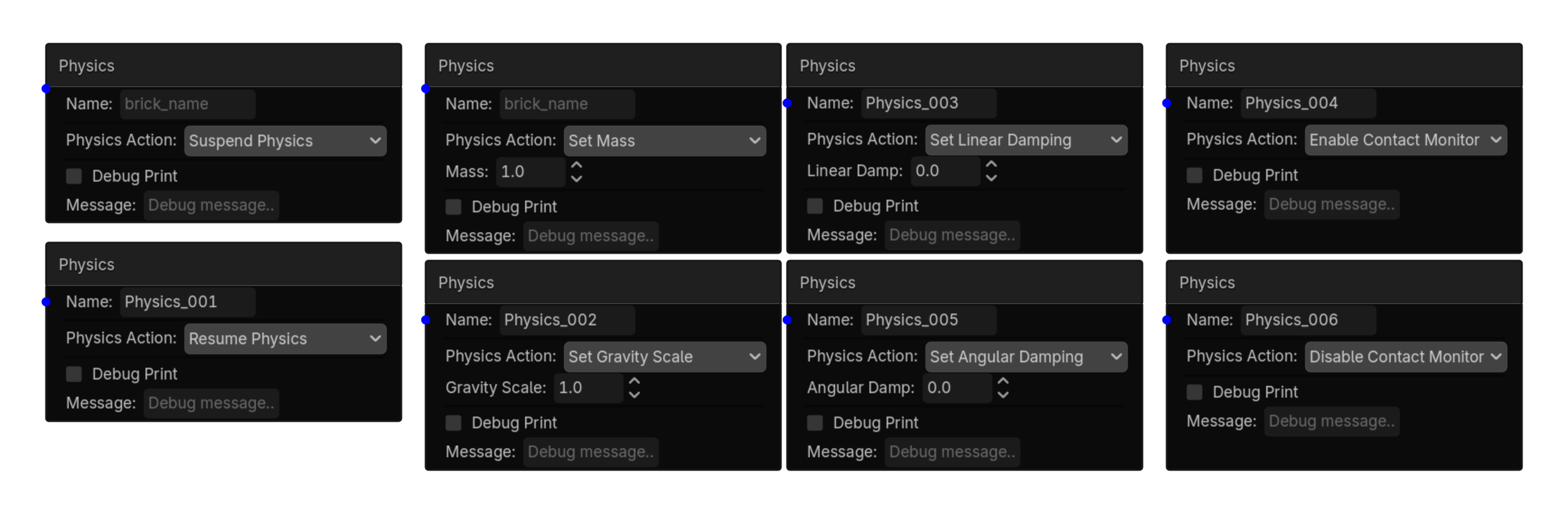
Physics
Checks CharacterBody3D collision state: on floor, on wall, or on ceiling.\nUse this for jump checks, wall checks, ceiling bumps, and platformer logic.
Options
| Property | Details |
|---|---|
contact_type
|
Contact Type
Choices: On Floor,On Wall,On Ceiling Default:
On Floor
|
invert
|
Invert
Default:
false
|
require_contact_loss_first
|
Require Contact Loss First
Default:
false
|
Using this brick
Typical uses
- Start a logic chain when checks CharacterBody3D collision state: on floor, on wall, or on ceiling.\nUse this for jump checks, wall checks, ceiling bumps, and platformer logic.
- Gate an action through a Controller so multiple conditions can be combined.
- Use it as the event or condition at the beginning of a reusable chain.
Example chain
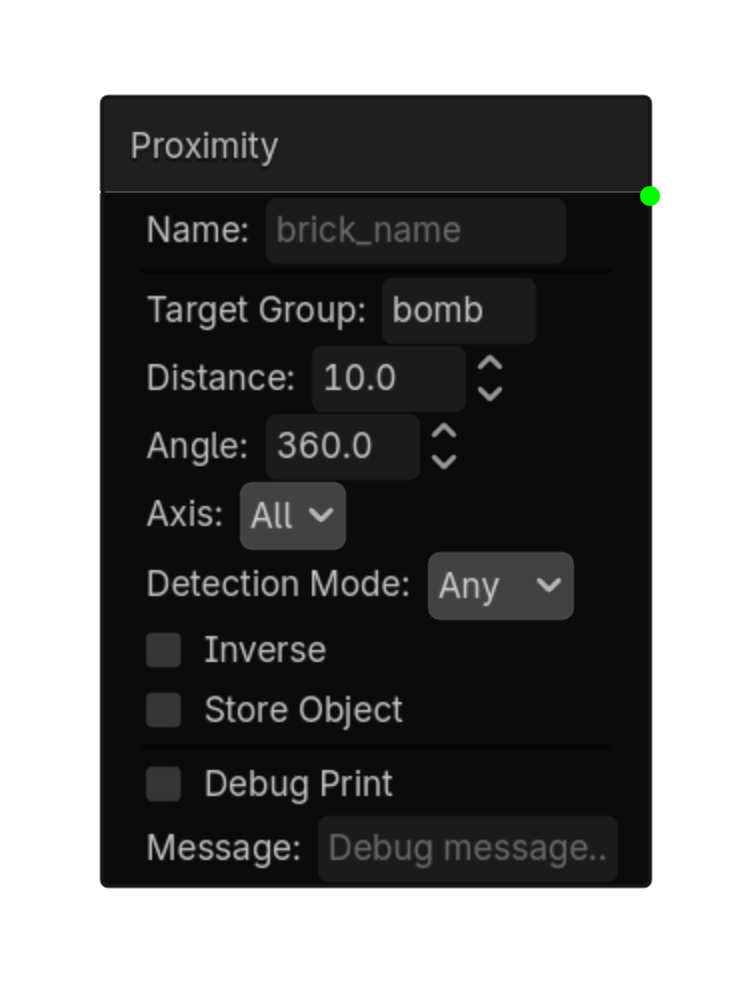
Proximity
Detects objects within a distance and optional angle.\nUses groups to filter which objects are detected.
Options
| Property | Details |
|---|---|
target_group
|
Target Group |
distance
|
Distance
Default:
10.0
|
angle
|
Angle
Default:
360.0
|
axis
|
Axis
Choices: All,+X,-X,+Y,-Y,+Z,-Z Default:
all
|
detection_mode
|
Detection Mode
Choices: Any,All,None Default:
any
|
inverse
|
Inverse
Default:
false
|
store_object
|
Store Object
Default:
false
|
object_variable
|
Object Variable |
Using this brick
Typical uses
- Start a logic chain when detects objects within a distance and optional angle.\nUses groups to filter which objects are detected.
- Gate an action through a Controller so multiple conditions can be combined.
- Use it as the event or condition at the beginning of a reusable chain.
Example chain
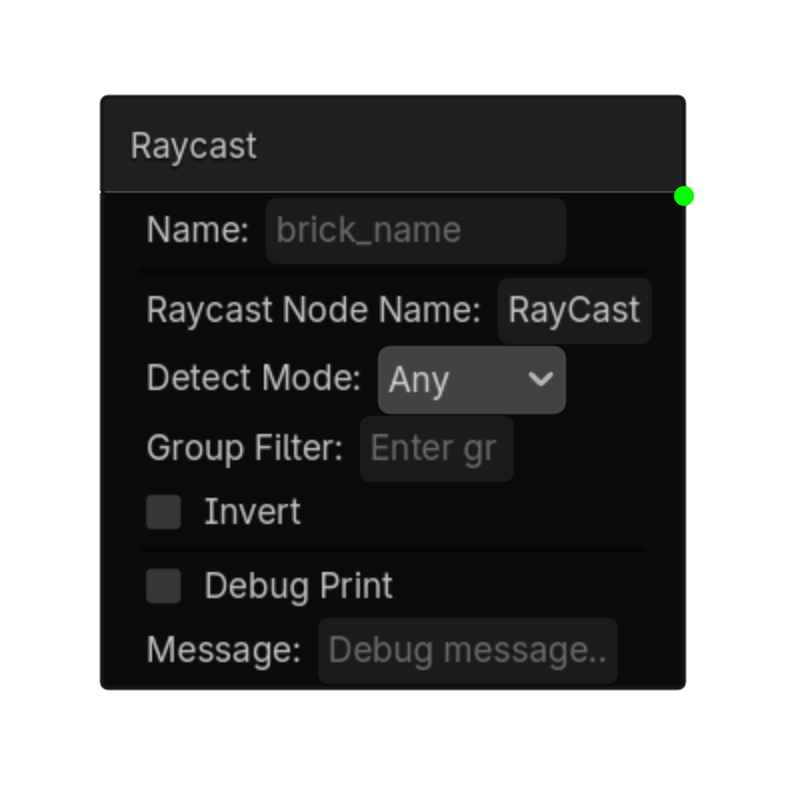
Raycast
Detects along a RayCast3D. This can be used for objects, groups, walls, ground, or ledges.\nThe RayCast3D's direction, length, and collision mask are set on the RayCast3D node itself.
Options
| Property | Details |
|---|---|
raycast_node_name
|
Raycast Node Name
Default:
RayCast3D
RayCast3D node name |
detect_mode
|
Detect Mode
Choices: Any,Group,Nothing Default:
any
|
group_filter
|
Group Filter |
invert
|
Invert
Default:
false
|
Using this brick
Typical uses
- Start a logic chain when detects along a RayCast3D. This can be used for objects, groups, walls, ground, or ledges.\nThe RayCast3D's direction, length, and collision mask are set on the RayCast3D node itself.
- Gate an action through a Controller so multiple conditions can be combined.
- Use it as the event or condition at the beginning of a reusable chain.
Example chain
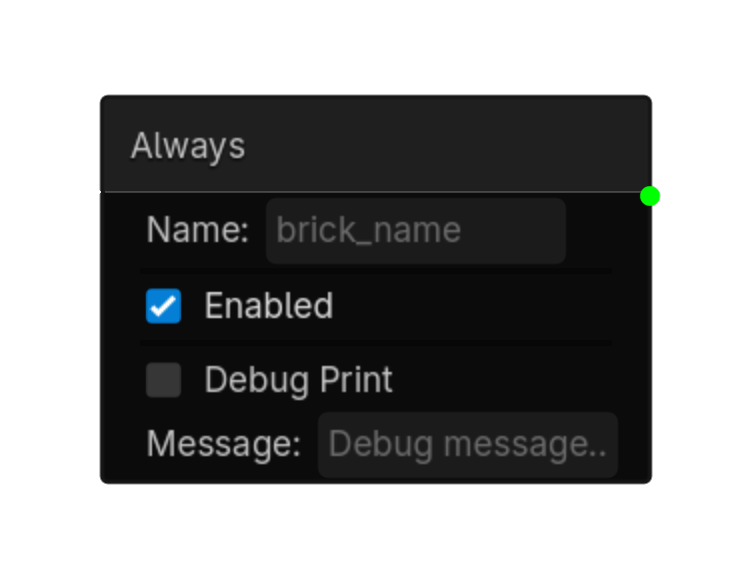
Always
Always logic brick.
Options
| Property | Details |
|---|---|
enabled
|
Enabled
Default:
true
|
Using this brick
Typical uses
- Start a logic chain when always logic brick.
- Gate an action through a Controller so multiple conditions can be combined.
- Use it as the event or condition at the beginning of a reusable chain.
Example chain
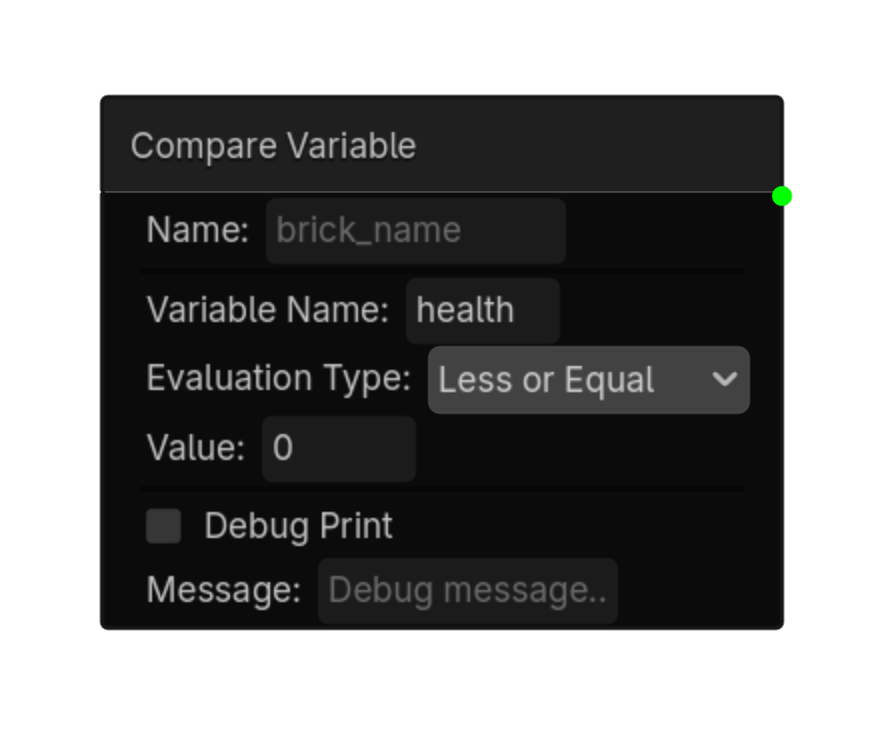
Compare Variable
Compares a variable 's value.\nWorks with local , exported, and global variables.\nAutomatically checks GlobalVars if not found locally.
Options
| Property | Details |
|---|---|
variable_name
|
Variable Name |
evaluation_type
|
Evaluation Type
Choices: Equal,Not Equal,Interval,Changed,Greater Than,Less Than,Greater or Equal,Less or Equal Default:
equal
|
value
|
Value |
min_value
|
Min Value |
max_value
|
Max Value |
Using this brick
Typical uses
- Start a logic chain when compares a variable's value.\nWorks with local, exported, and global variables.\nAutomatically checks GlobalVars if not found locally.
- Gate an action through a Controller so multiple conditions can be combined.
- Capture or compare a value as part of variable-driven gameplay logic.
Example chain
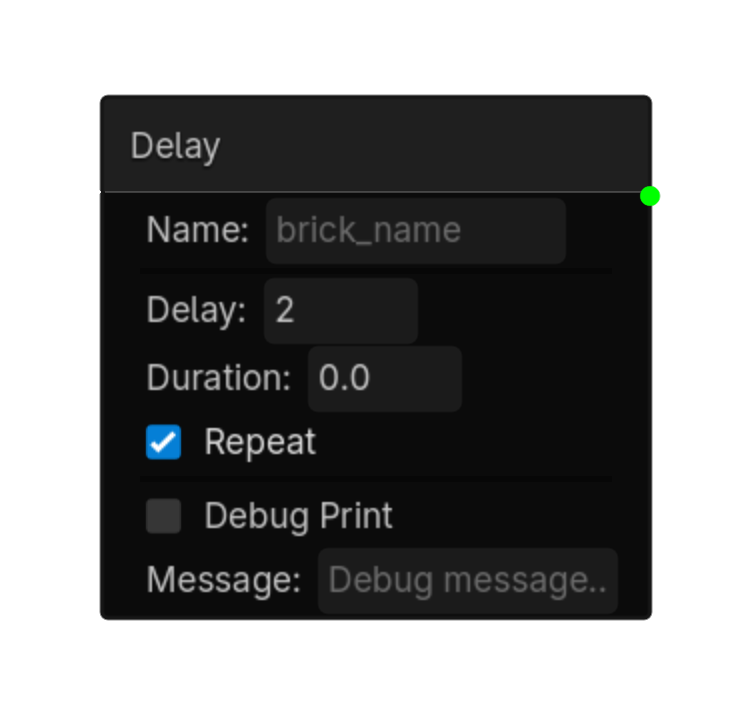
Delay
Waits for Delay seconds, then stays active for Duration seconds.\nRepeat cycles the whole sequence.
Options
| Property | Details |
|---|---|
delay
|
Delay
Default:
0.0
|
duration
|
Duration
Default:
0.0
|
repeat
|
Repeat
Default:
false
|
Using this brick
Typical uses
- Start a logic chain when waits for Delay seconds, then stays active for Duration seconds.\nRepeat cycles the whole sequence.
- Gate an action through a Controller so multiple conditions can be combined.
- Use it as the event or condition at the beginning of a reusable chain.
Example chain
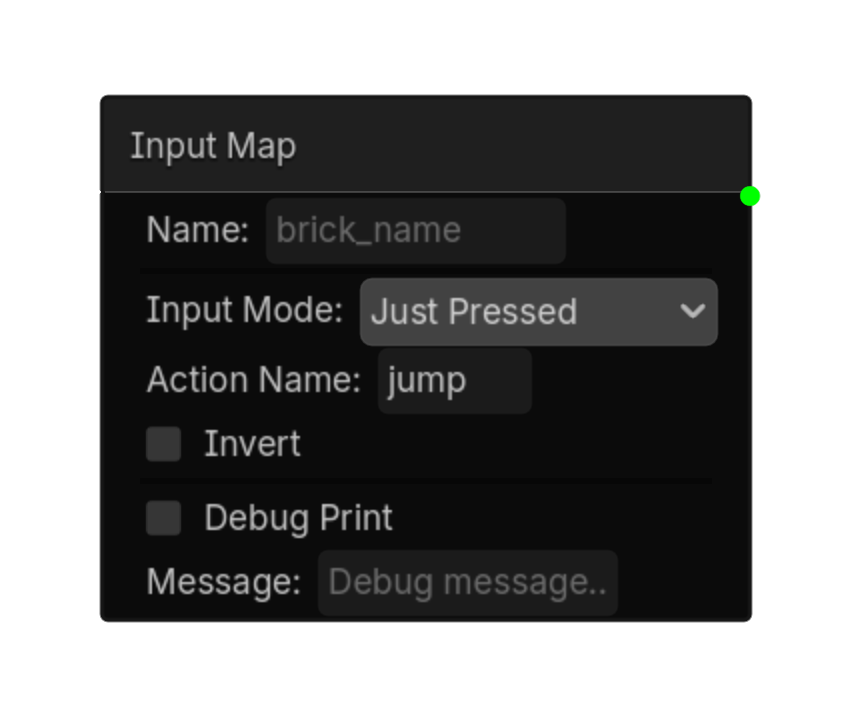
Input Map
Detects input actions from Project > Input Map.\nSupports button presses, any-action checks, and analog joystick axis input.
Options
| Property | Details |
|---|---|
input_mode
|
Input Mode
Choices: Pressed,Just Pressed,Just Released,Any Pressed,Any Just Pressed,Any Just Released,Axis Default:
pressed
|
action_name
|
Action Name
Default:
ui_accept
|
negative_action
|
Negative Action |
positive_action
|
Positive Action |
invert
|
Invert
Default:
false
|
store_in
|
Store In |
deadzone
|
Deadzone
Default:
0.1
|
Using this brick
Typical uses
- Start a logic chain when detects input actions from Project > Input Map.\nSupports button presses, any-action checks, and analog joystick axis input.
- Gate an action through a Controller so multiple conditions can be combined.
- Capture or compare a value as part of variable-driven gameplay logic.
Example chain
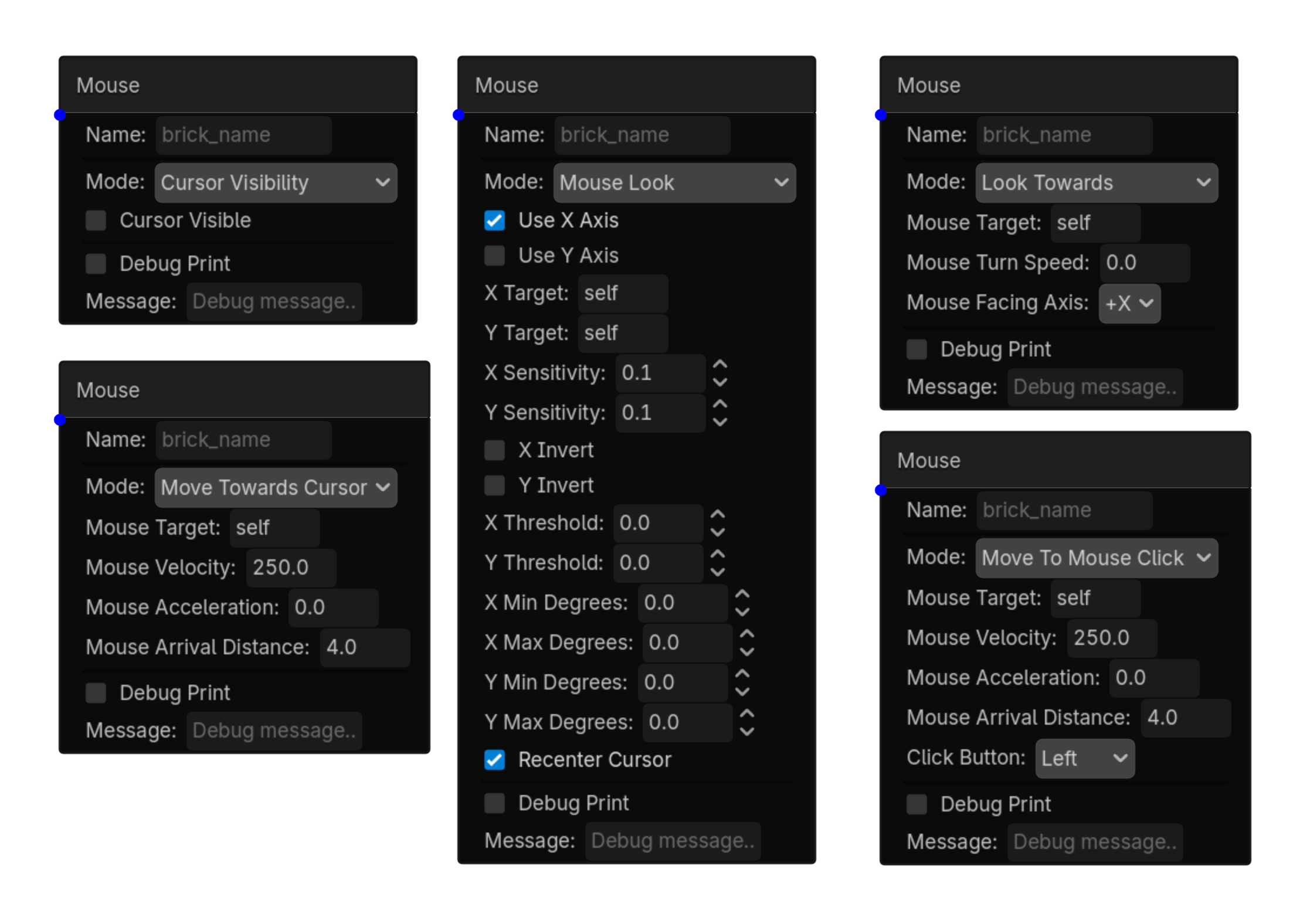
Mouse
Detects mouse buttons, wheel, movement, and object hover
Options
| Property | Details |
|---|---|
detection_type
|
Detection Type
Choices: Button,Wheel,Movement,Hover Object,Hover Any Default:
button
|
mouse_button
|
Mouse Button
Choices: Left,Right,Middle Default:
left
|
button_state
|
Button State
Choices: Pressed,Released,Held Default:
pressed
|
wheel_direction
|
Wheel Direction
Choices: Up,Down Default:
up
|
movement_threshold
|
Movement Threshold
Default:
0.1
|
target_node_name
|
Target Node Name
Default:
self
|
Using this brick
Typical uses
- Start a logic chain when detects mouse buttons, wheel, movement, and object hover.
- Gate an action through a Controller so multiple conditions can be combined.
- Use it as the event or condition at the beginning of a reusable chain.
Example chain
Random
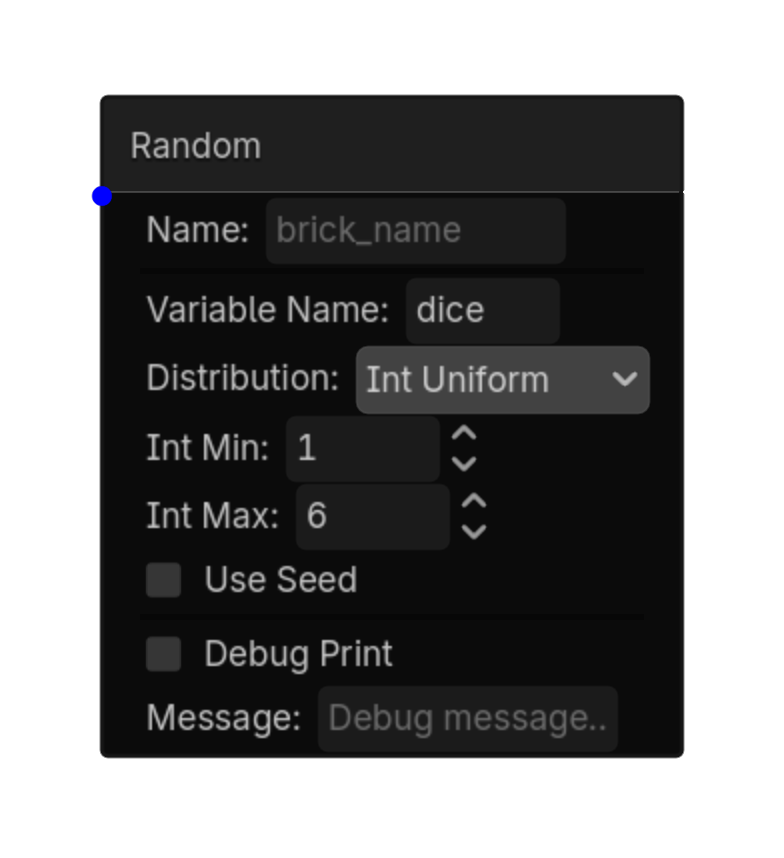
Activates randomly each time it is evaluated.\\nPair with a Delay Sensor to control how often it rolls.\\nUseful for random behaviors, AI variation, and loot rolls.
Options
| Property | Details |
|---|---|
trigger_mode
|
Trigger Mode
Choices: Chance,Value,Range Default:
chance
|
chance_percent
|
Chance Percent
Choices: 0.0,100.0,0.1 Default:
10.0
|
target_value
|
Target Value
Default:
0
|
target_min
|
Target Min
Default:
0
|
target_max
|
Target Max
Default:
100
|
use_seed
|
Use Seed
Default:
false
|
seed_value
|
Seed Value
Default:
0
|
store_value
|
Store Value
Default:
false
|
value_variable
|
Value Variable |
Using this brick
Typical uses
- Start a logic chain when activates randomly each time it is evaluated.\\nPair with a Delay Sensor to control how often it rolls.\\nUseful for random behaviors, AI variation, and loot rolls.
- Gate an action through a Controller so multiple conditions can be combined.
- Capture or compare a value as part of variable-driven gameplay logic.
Example chain
Signal
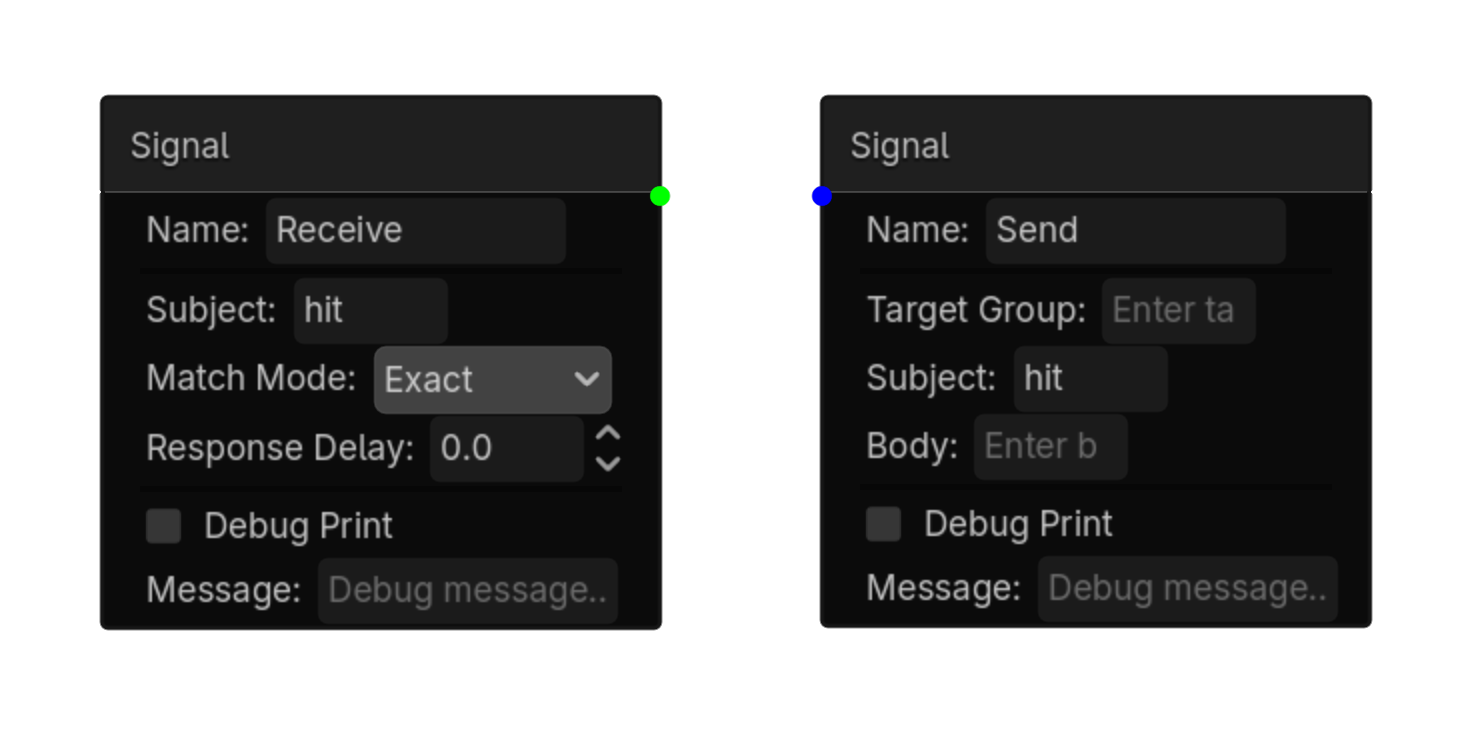
Detects signals sent by a Signal Actuator.\nListens for a specific subject.
Options
| Property | Details |
|---|---|
subject
|
Subject |
match_mode
|
Match Mode
Choices: Exact,Contains,Starts With Default:
exact
|
response_delay
|
Response Delay
Default:
0.0
|
Using this brick
Typical uses
- Start a logic chain when detects signals sent by a Signal Actuator.\nListens for a specific subject.
- Gate an action through a Controller so multiple conditions can be combined.
- Use it as the event or condition at the beginning of a reusable chain.
Example chain