UI Sensors
7 sensors available for UI workflows.
Source of truth
This page lists only bricks registered by the uploaded addon. Legacy aliases and compatibility script shims are not presented as separate menu entries.
Chapter guide
How sensors fit into a chain
Sensors detect input, state , collisions, timing, and other conditions. They begin a chain but do not perform gameplay actions by themselves.
- Choose the event or condition to detect.
- Configure filters, thresholds, or stored values.
- Connect the sensor to a Controller , then to one or more Actuators.
sensor • ui
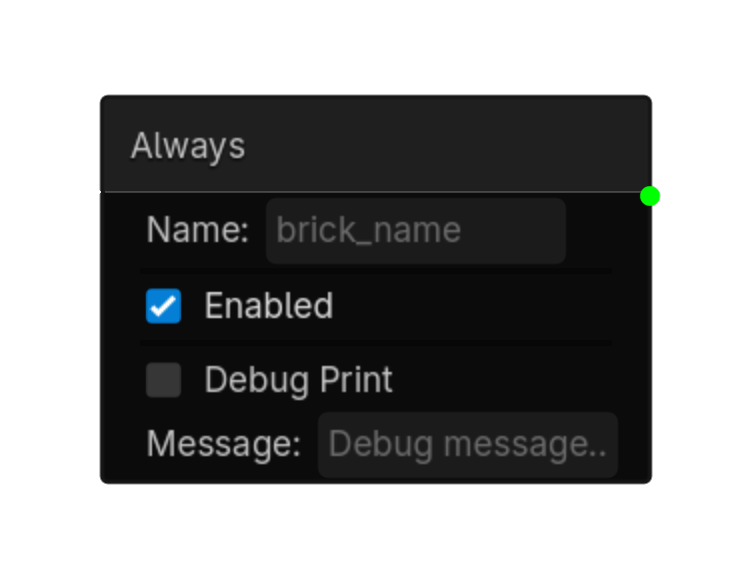
Always
Always active while enabled.
Options
| Property | Details |
|---|---|
enabled
|
Enabled
Default:
true
|
Using this brick
Typical uses
- Start a logic chain when always active while enabled.
- Gate an action through a Controller so multiple conditions can be combined.
- Use it as the event or condition at the beginning of a reusable chain.
Example chain
Always
Controller
Choose an actuator
Tip
Connect the sensor to a Controller even when only one condition is needed; this keeps the chain easy to expand later.
Common mistake
A sensor only detects a condition. It does not perform an action until it is connected through a Controller to an Actuator.
sensor • ui
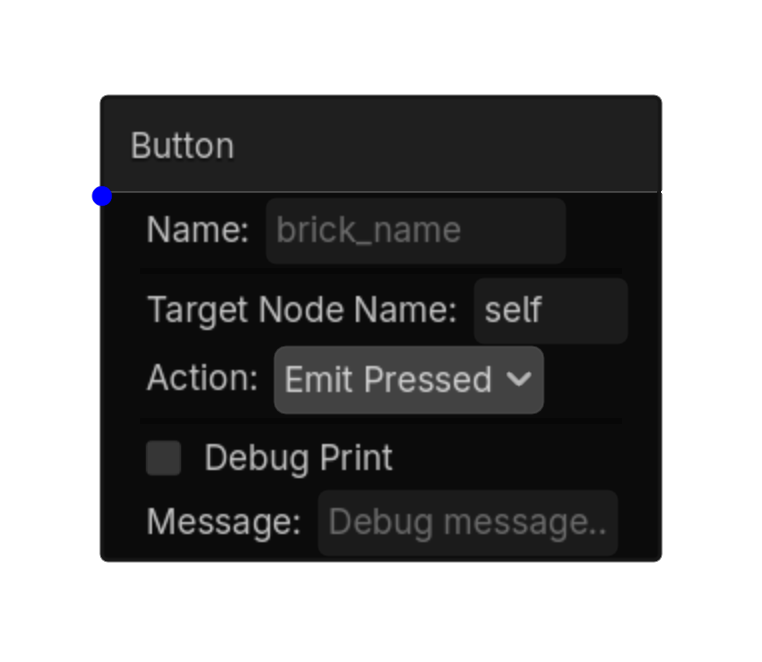
Button
Detects when a Button is pressed, toggled, hovered, or focused.
Options
| Property | Details |
|---|---|
target_node_name
|
Target Node Name |
event
|
Event
Choices: Just Pressed,Pressed,Just Released,Hovering,Focused,Toggled On,Toggled Off Default:
just_pressed
|
store_pressed
|
Store Pressed |
Using this brick
Typical uses
- Start a logic chain when detects when a Button is pressed, toggled, hovered, or focused.
- Gate an action through a Controller so multiple conditions can be combined.
- Use it as the event or condition at the beginning of a reusable chain.
Example chain
Button
Controller
Choose an actuator
Tip
Connect the sensor to a Controller even when only one condition is needed; this keeps the chain easy to expand later.
Common mistake
A sensor only detects a condition. It does not perform an action until it is connected through a Controller to an Actuator.
sensor • ui
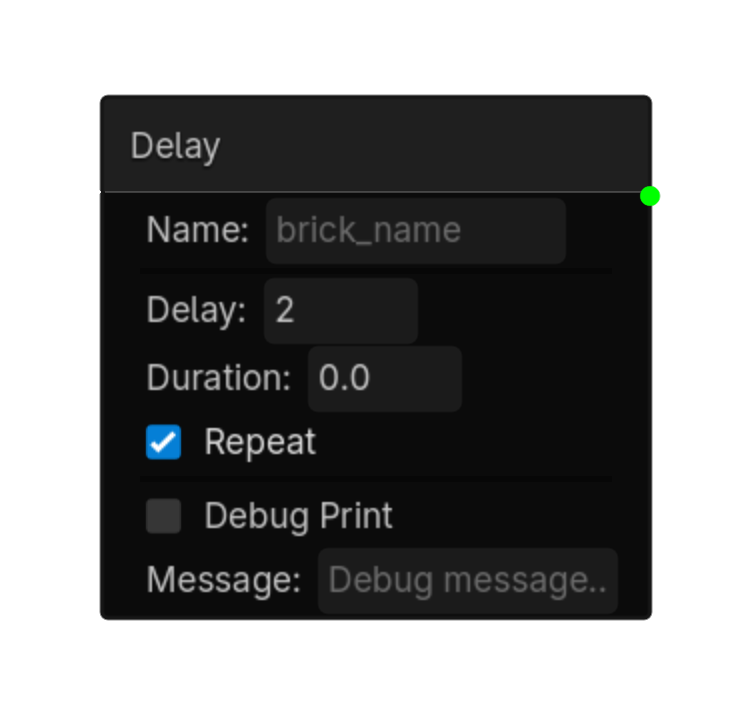
Delay
Triggers after a delay or at an interval.
Options
| Property | Details |
|---|---|
delay
|
Delay
Default:
0.0
|
duration
|
Duration
Default:
0.0
|
repeat
|
Repeat
Default:
false
|
Using this brick
Typical uses
- Start a logic chain when triggers after a delay or at an interval.
- Gate an action through a Controller so multiple conditions can be combined.
- Use it as the event or condition at the beginning of a reusable chain.
Example chain
Delay
Controller
Choose an actuator
Tip
Connect the sensor to a Controller even when only one condition is needed; this keeps the chain easy to expand later.
Common mistake
A sensor only detects a condition. It does not perform an action until it is connected through a Controller to an Actuator.
sensor • ui
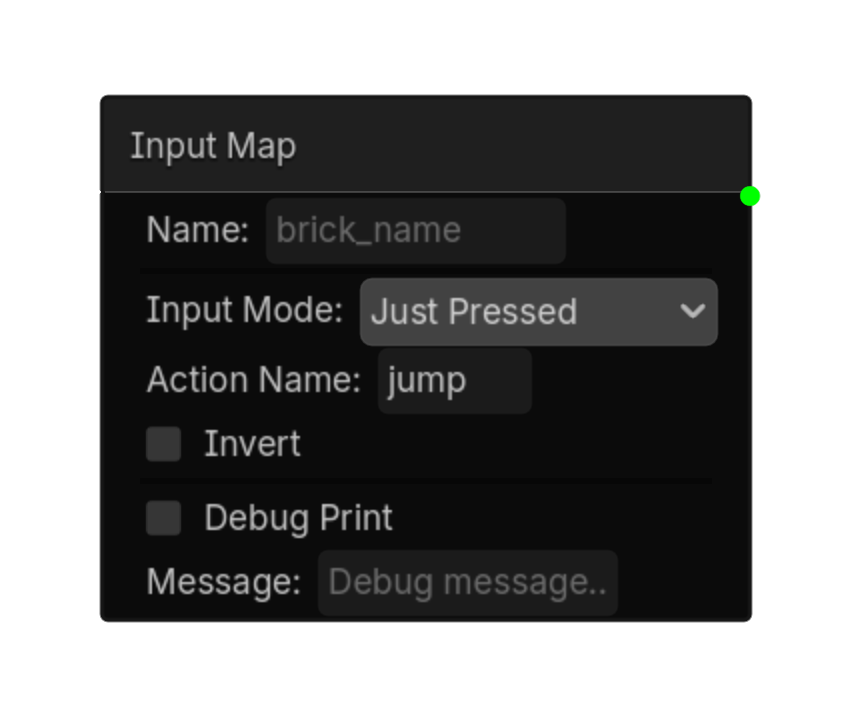
Input Map
Detects Godot Input Map actions for UI logic.
Options
| Property | Details |
|---|---|
input_mode
|
Input Mode
Choices: Pressed,Just Pressed,Just Released,Any Pressed,Any Just Pressed,Any Just Released,Axis Default:
pressed
|
action_name
|
Action Name
Default:
ui_accept
|
negative_action
|
Negative Action |
positive_action
|
Positive Action |
invert
|
Invert
Default:
false
|
store_in
|
Store In |
deadzone
|
Deadzone
Default:
0.1
|
Using this brick
Typical uses
- Start a logic chain when detects Godot Input Map actions for UI logic.
- Gate an action through a Controller so multiple conditions can be combined.
- Capture or compare a value as part of variable-driven gameplay logic.
Example chain
Input Map
Controller
Choose an actuator
Tip
Use Invert when the opposite condition is easier to express than rebuilding the chain with different logic.
Common mistake
A sensor only detects a condition. It does not perform an action until it is connected through a Controller to an Actuator.
sensor • ui
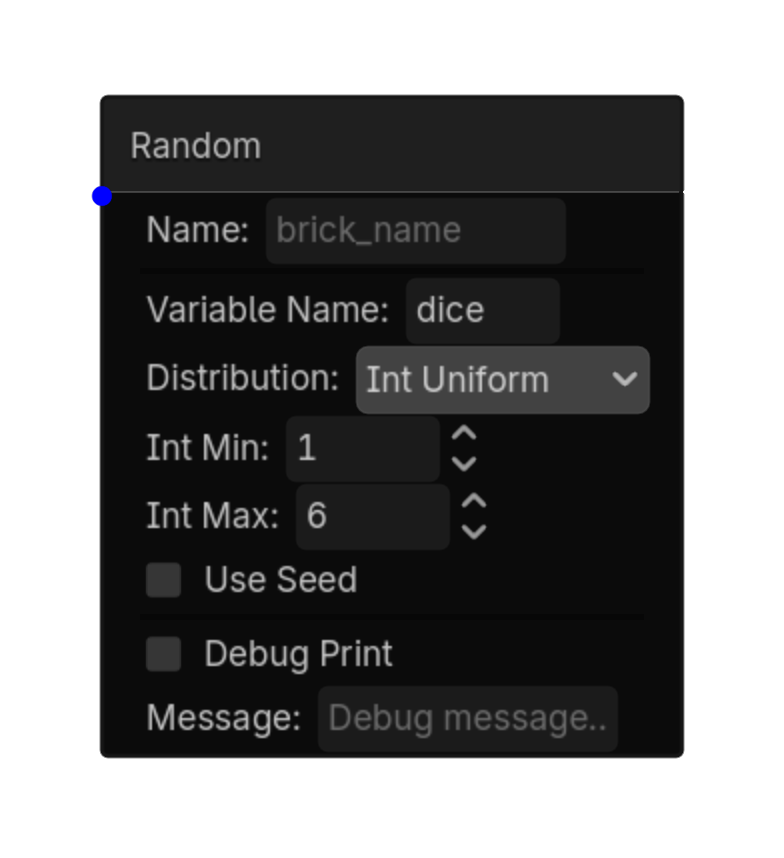
Random
Randomly activates based on chance.
Options
| Property | Details |
|---|---|
trigger_mode
|
Trigger Mode
Choices: Chance,Value,Range Default:
chance
|
chance_percent
|
Chance Percent
Choices: 0.0,100.0,0.1 Default:
10.0
|
target_value
|
Target Value
Default:
0
|
target_min
|
Target Min
Default:
0
|
target_max
|
Target Max
Default:
100
|
use_seed
|
Use Seed
Default:
false
|
seed_value
|
Seed Value
Default:
0
|
store_value
|
Store Value
Default:
false
|
value_variable
|
Value Variable |
Using this brick
Typical uses
- Start a logic chain when randomly activates based on chance.
- Gate an action through a Controller so multiple conditions can be combined.
- Capture or compare a value as part of variable-driven gameplay logic.
Example chain
Random
Controller
Choose an actuator
Tip
Connect the sensor to a Controller even when only one condition is needed; this keeps the chain easy to expand later.
Common mistake
A sensor only detects a condition. It does not perform an action until it is connected through a Controller to an Actuator.
sensor • ui
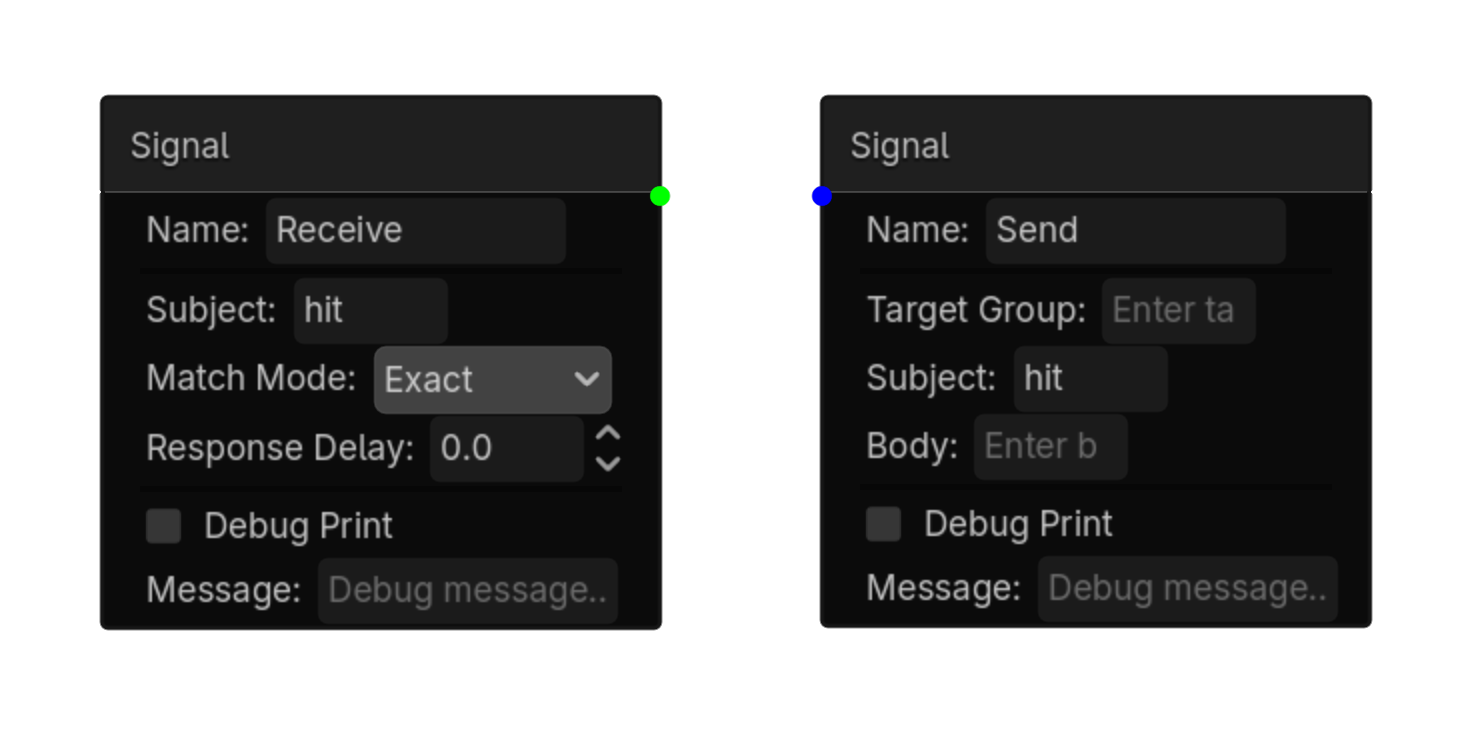
Signal
Receives a Logic Bricks message.
Options
| Property | Details |
|---|---|
subject
|
Subject |
match_mode
|
Match Mode
Choices: Exact,Contains,Starts With Default:
exact
|
response_delay
|
Response Delay
Default:
0.0
|
Using this brick
Typical uses
- Start a logic chain when receives a Logic Bricks message.
- Gate an action through a Controller so multiple conditions can be combined.
- Use it as the event or condition at the beginning of a reusable chain.
Example chain
Signal
Controller
Choose an actuator
Tip
Connect the sensor to a Controller even when only one condition is needed; this keeps the chain easy to expand later.
Common mistake
A sensor only detects a condition. It does not perform an action until it is connected through a Controller to an Actuator.
sensor • ui
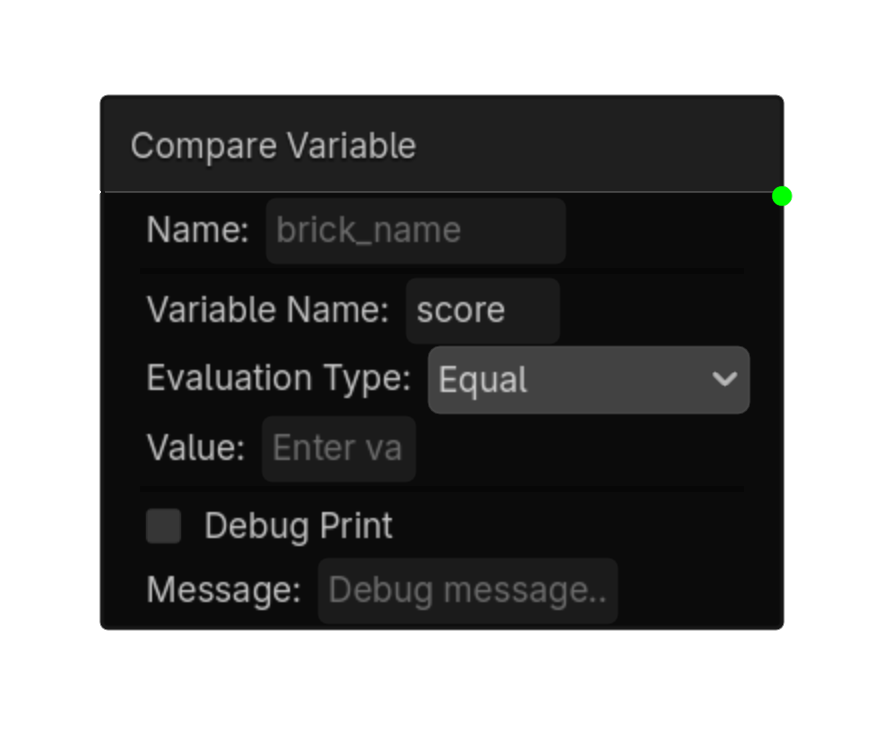
Variable
Compares a variable value.
Options
| Property | Details |
|---|---|
variable_name
|
Variable Name |
evaluation_type
|
Evaluation Type
Choices: Equal,Not Equal,Interval,Changed,Greater Than,Less Than,Greater or Equal,Less or Equal Default:
equal
|
value
|
Value |
min_value
|
Min Value |
max_value
|
Max Value |
Using this brick
Typical uses
- Start a logic chain when compares a variable value.
- Gate an action through a Controller so multiple conditions can be combined.
- Capture or compare a value as part of variable-driven gameplay logic.
Example chain
Variable
Controller
Choose an actuator
Tip
Connect the sensor to a Controller even when only one condition is needed; this keeps the chain easy to expand later.
Common mistake
A sensor only detects a condition. It does not perform an action until it is connected through a Controller to an Actuator.